Guides
Work from your inbox
Connect Gmail, switch it on for a task, and get the assistant working from real threads, searching, reading, summarising, and drafting replies you sign.
Half of most people’s context lives in email. Connecting it turns “remind me what the supplier said” from a search you do into a question you ask.
1. Enable, then connect
Two steps, and they belong to different people.
An admin enables Gmail for the workspace. This makes the connector available; it grants nobody access to anybody’s mail.
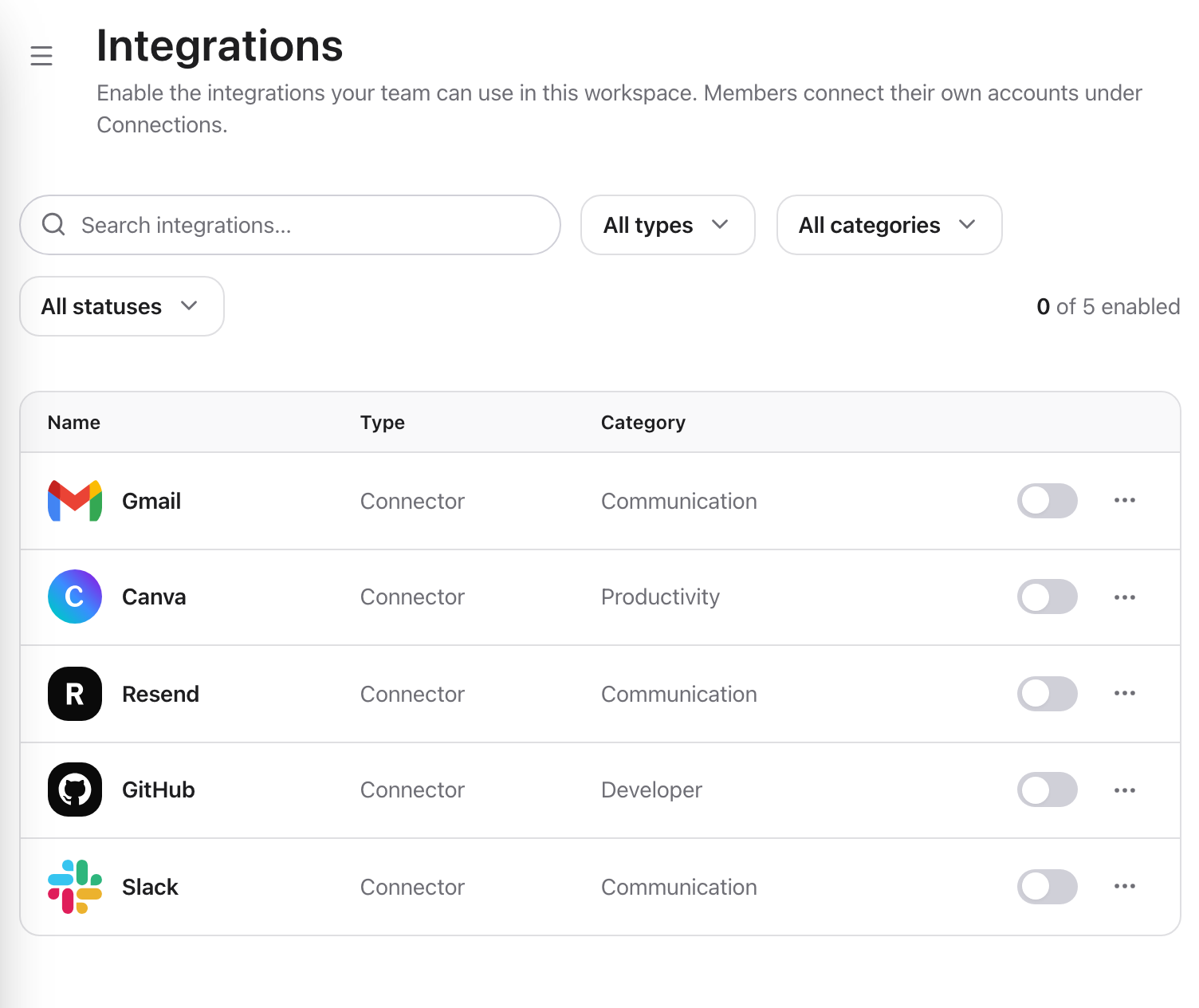
Both steps live on one page: an admin adds the connector to the workspace, and each member connects their own account from the same row.
You connect your own account. Every member connects their own mailbox, and the assistant acts with your access, it can see what you can see, and nothing else. Tokens are encrypted before they are stored and never reach the browser.
2. Switch it on for the task
Connectors are enabled per task, not globally. That is deliberate: a task about a client should not be quietly reading your calendar. Turn Gmail on for the task where you want it and leave it off elsewhere.
If you forget, the assistant will notice and offer a small card to connect what it needs, with one line saying why, then carry on with what it can do without it.
3. Ask questions of the inbox
It searches, opens the messages that matter, and answers from them. The reply shows what it searched and read, so you can check the source rather than trust the summary.
4. Turn a thread into work
The useful move is not summarising email; it is getting email out of email:
You get a draft in the conversation and a document you can keep. Combine it with a project and the whole exchange lives where the rest of the engagement is.
5. Decide who is allowed to send
The assistant in a task drafts; you send. An AI staff member can be given the ability to send email itself, and drafting and sending are separate tools on purpose. A read-only staff member can compose all day and cannot send anything; that is a structural limit, not an instruction it might ignore.
Start read-only. Raise it once you have read a few drafts and agree with them.
Other connectors, same shape
Slack, GitHub, Canva, Resend and any custom tool server your workspace adds all follow this pattern: an admin enables, you connect your own account, you switch it on per task, and every action runs with your own permissions on that service.
Next
- Connected appsthe full connector model
- Email, chat, calendar and approvalsoutbound actions and approvals