Tasks
Slide decks
Ask for a presentation and you get a real deck, slides with layouts, a visual theme, generated imagery, and a PowerPoint export.
Ask for a presentation, a pitch, or a talk and the assistant builds a deck: slides with layouts and speaker notes, styled by a theme, editable beside the conversation and exportable to PowerPoint.
Where it runs: in a task.
What the assistant can do
| It can | What that looks like |
|---|---|
| Create a deck | The whole outline in one go, every slide, in order, titled |
| Add a slide | One more slide at a position you name |
| Edit a slide | Rewrite its blocks, change its layout, or set speaker notes |
| Delete a slide | Removed; the rest close up |
| Reorder slides | A new order for the whole deck |
| Restyle the deck | A different theme, colours, fonts, shape. Content untouched |
| Illustrate a slide | Generates an image and places it in the slide’s media slot |
| Read the deck | The outline, position, layout, headline per slide |
| Read one slide | Its full blocks and notes, before editing it |
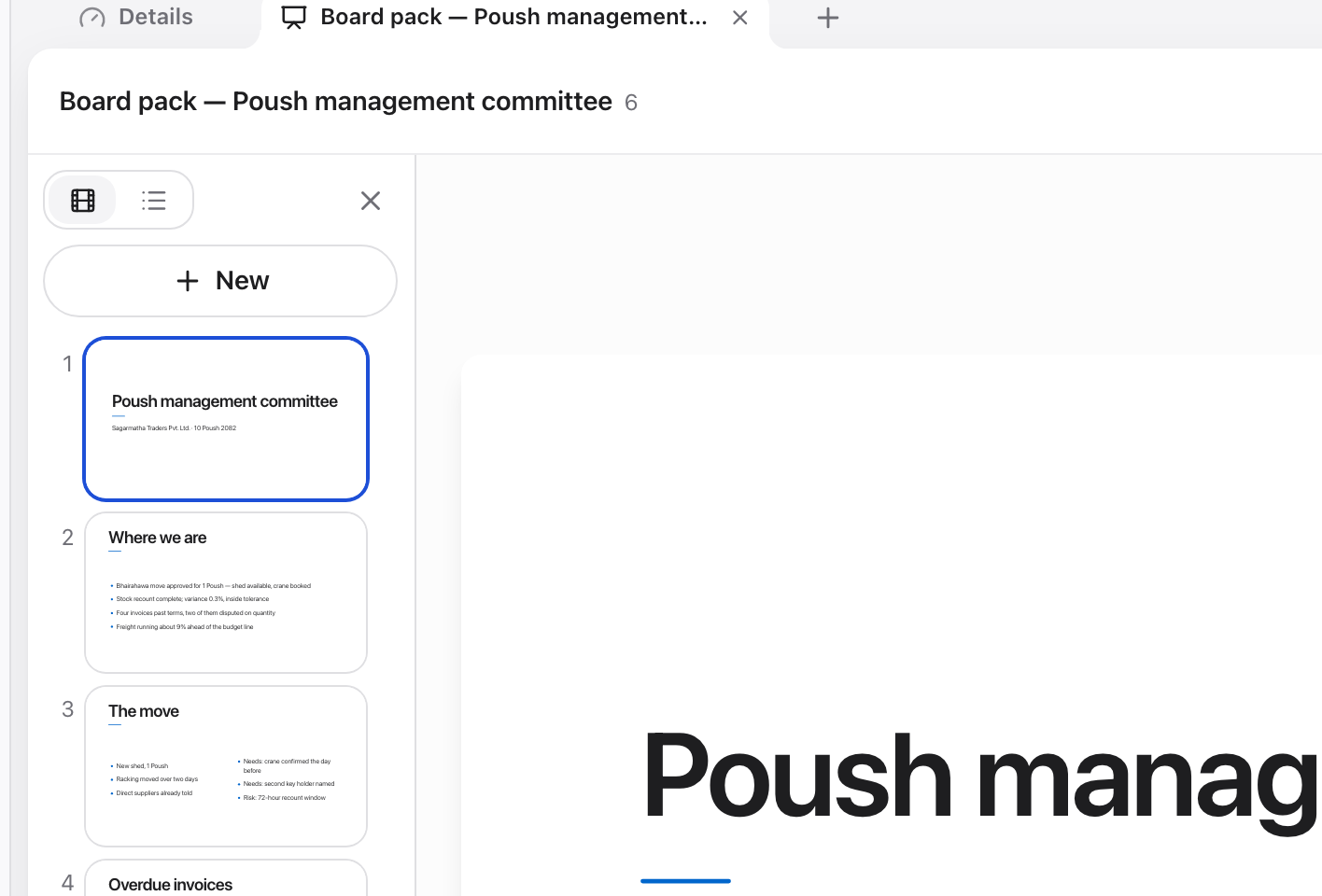
The deck as a list of slides, the outline arrives first, then each slide fills out.
How it builds
It writes the outline first, every slide title, in order, then fills slides out one at a time. That is why a long deck appears as a skeleton and thickens rather than arriving finished. It is also the best moment to intervene: change the outline before the writing happens and you save the rewrite.
Layouts are structural (title slide, bullets, image-left, image-right, full-bleed, and so on). A slide can only take a generated image if its layout has a media slot, ask for the picture and the assistant switches the layout for you.
Themes
A theme controls colours, fonts, and shape across every slide. Ask for a different feel, “make it warmer”, “something more corporate”, and the deck is restyled without touching a word of content. Changing the theme is always safe; it is not a rewrite.
Getting it out
Decks export to PowerPoint (.pptx), images included, so you can finish them in the tool your audience expects.
Working with it well
Give it the argument, not just the topic. “Five slides: the problem, why now, our approach, evidence, the ask” produces a coherent deck; “a deck about our product” produces a plausible one.
Say how long. Slide count is the single most useful constraint.
Fix slides one at a time. “Slide 4 needs a chart of the growth numbers” is cheaper and safer than “redo the deck”.