Tasks
How tools work
Tools are the things the assistant can actually do, write a document, run a search, generate an image, send an email. Here is the whole set and where each one runs.
A model on its own can only write text back at you. Dhanu’s assistant can do things: build a spreadsheet with working formulas, search your knowledge base, generate an image, read the email thread you pointed at. Each of those is a tool, and this section documents every one of them.
You do not pick a tool
There is no menu of tools to choose from before you type. You describe the outcome, “turn this into a deck”, “find what we agreed about refunds”, and the assistant picks the tools it needs, often several in one reply.
What you do control is scope and access: which files the task can see, which apps are connected to it, and what a given AI staff member is allowed to do.
Where tools run
Tools live in two places, and the set is not the same in both.
In a task. The assistant beside your conversation can make things, documents, spreadsheets, decks, mini apps, images, video, sound, read what you have attached, and search your company knowledge. This is the set most people use most days.
In an AI staff run. A staff member working on its own gets a different toolbox aimed at unattended work: web search and research, memory, a code and data sandbox, email and calendar, scheduling, and the ability to stop and ask a human. Each staff member is given its own selection.
Every page in this section says plainly which of the two it applies to.
Seeing what it did
Every tool call is recorded on the reply. You get a line like Generated an image, Searched the brain, or Edited 3 files, and for staff runs, a full trace of the run. Nothing happens invisibly: if the assistant claims it sent something, there is a line saying it sent it.
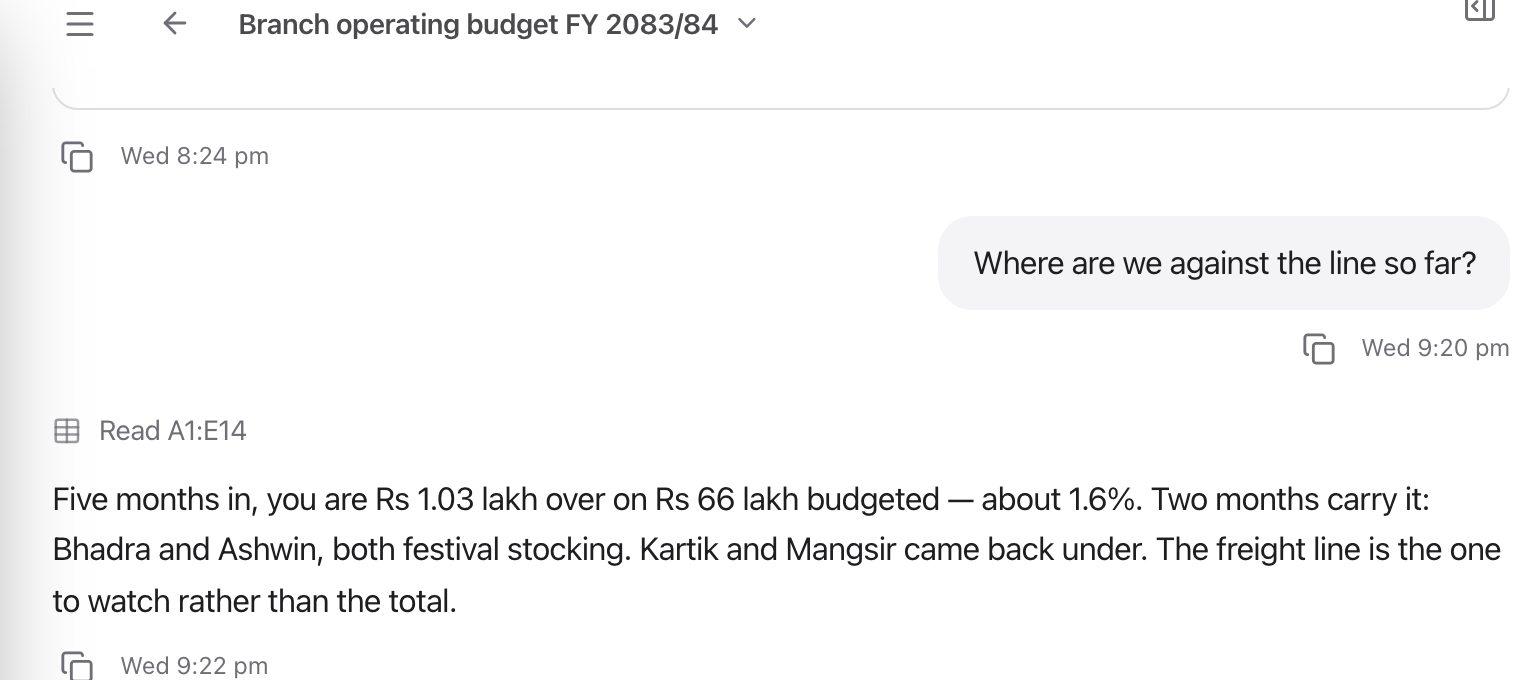
The tool line sits above the reply; whatever the tool made is attached below it.
What limits a tool
Four things, in order of how often they bite:
Scope. The assistant works from what is in the task. A file sitting in your personal space is invisible to a task inside a project.
Connection. A connected-app tool exists only once that app is connected, Gmail tools appear when Gmail is connected and switched on for the task.
Staff access level. Every staff tool is marked read, write, or destructive. A Read-only staff member can draft an email but never send it; Standard can act; Admin additionally manages staff, roles, and integrations. Raising what a staff member can do is a deliberate choice you make on its settings.
What is switched on for your workspace. Mini apps are a workspace-level feature, and video and sound generation depend on how your Dhanu is configured. If a page describes something you cannot see, that is usually why.
The tools, grouped
| Group | Tools |
|---|---|
| Making things | Documents, Spreadsheets, Slide decks, Mini apps |
| Media | Images, Video, Sound effects |
| Finding things | Reading your files and other tasks, Company knowledge, Web search and research |
| Reaching other systems | Connected apps, Email, chat and calendar |
| Working on its own | Plans and delegation, Memory and notes, Data, code and calculations |